How it works

How it works, from rates to delivery

Four steps, in the order you would actually do them: set your rates, price the job, let delivery check the plan, then track the hours as the work runs.

Step 1 · Workspace setup

Enter what each role costs you, once

An Owner or Admin sets what you pay and what you charge for each combination of seniority, skill and location. Fixed-price margin is worked out from the cost side — and Sales never sees it.

Entering hourly cost per role in Managed Margin, by experience level, specialization and onshore or offshore location

One row per role: seniority, skill, location and what that person costs you per hour.

1a
Go to Settings → Rate cards

Add each role your firm uses

Band (junior, mid, senior), skill type, and location. Set the billing rate and pay rate for each combination.

1b
Or import via CSV

Bulk import if you have many rate combinations

Download the CSV template, fill it in, and upload. All rates import in one step.

1c
Set your margin threshold

Decide what counts as a healthy margin

Projects at or above your threshold show green; anything under 20% shows red whatever you choose; in between shows amber. New workspaces start at 35% and an Owner or Admin can change it.

Step 2 · Presales planning

Price the job and compare the options

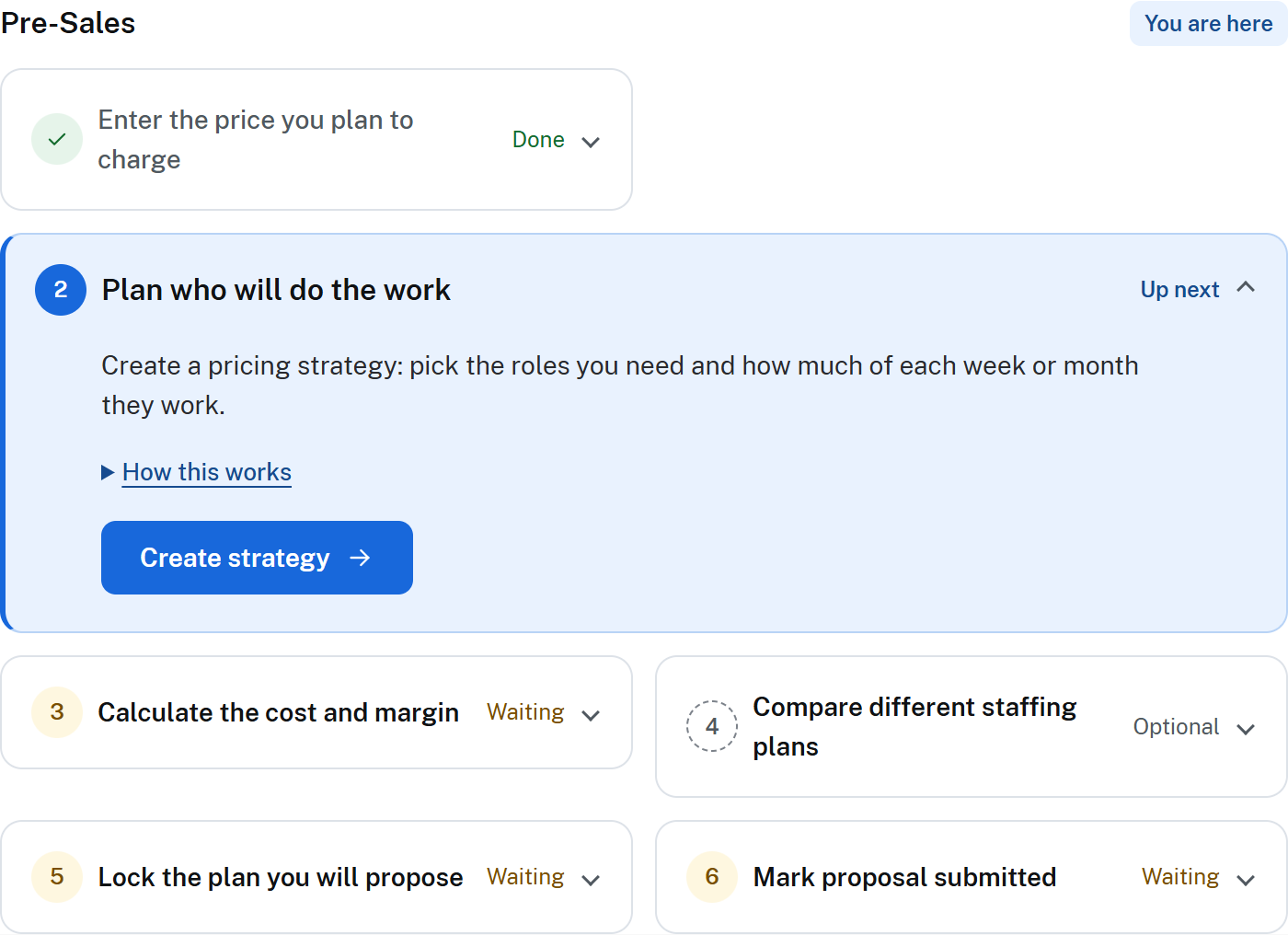
Enter your price and build the team behind it. Managed Margin subtracts commission, team cost and overhead to show the margin. Build as many versions as you like and keep them all.

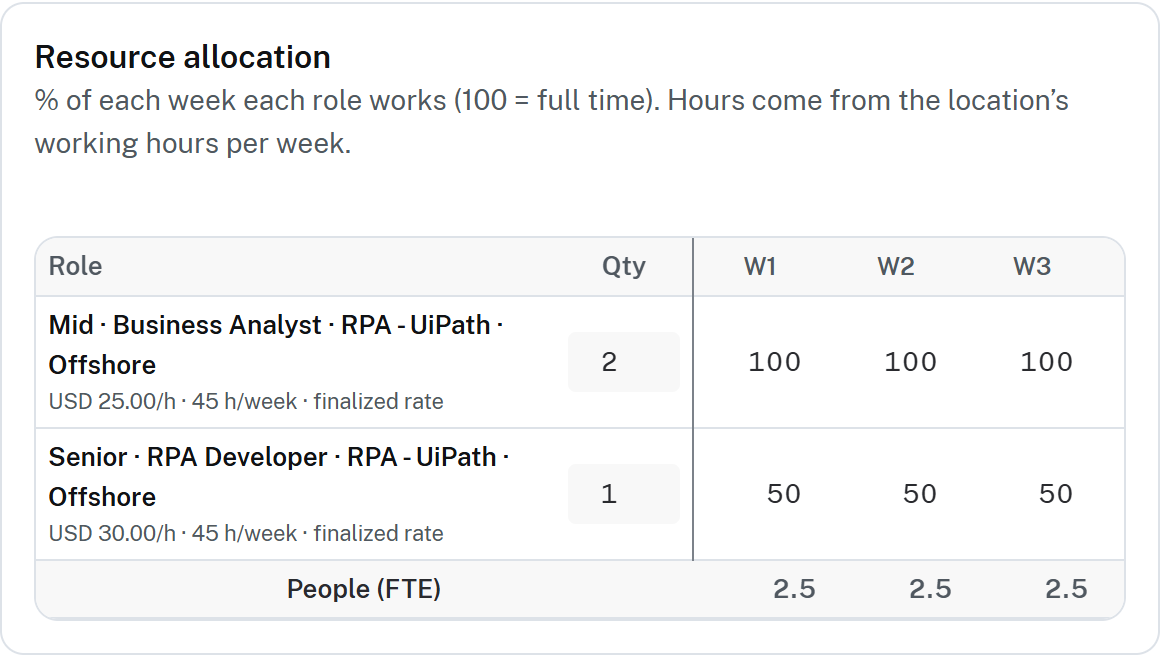
The weekly resource grid in Managed Margin, with three roles booked at different percentages across four weeks

Roles down the side, weeks across the top, and how much of each week they are booked.

Filling in the team

Once you pick an option, replace each unnamed role with a real person and set the weeks they will work. That becomes the plan delivery is measured against.

Keeping the alternatives

Picking one option does not delete the others. If the client pushes back on price, the cheaper version you already modelled is still there.

Step 3 · Delivery review

Let delivery check the plan before it goes out

Whoever will run the job sees who is on it, the hours each is given, and the margin that produces — while the price can still change.

Why this matters: the people who deliver the work get a say in the numbers it was sold on.
The staffed team, their hourly rates and weekly bookings, with the resulting 36.49% profit on a $29,500 fixed price

What delivery sees before sign-off: the team, their rates, and the 36.49% the plan produces.

What they can see

The people assigned, the hours behind each of them, and the margin the plan works out to.

What they can still change

The team, the hours and the price can all be edited right up until the project is set live.

Step 4 · Active delivery

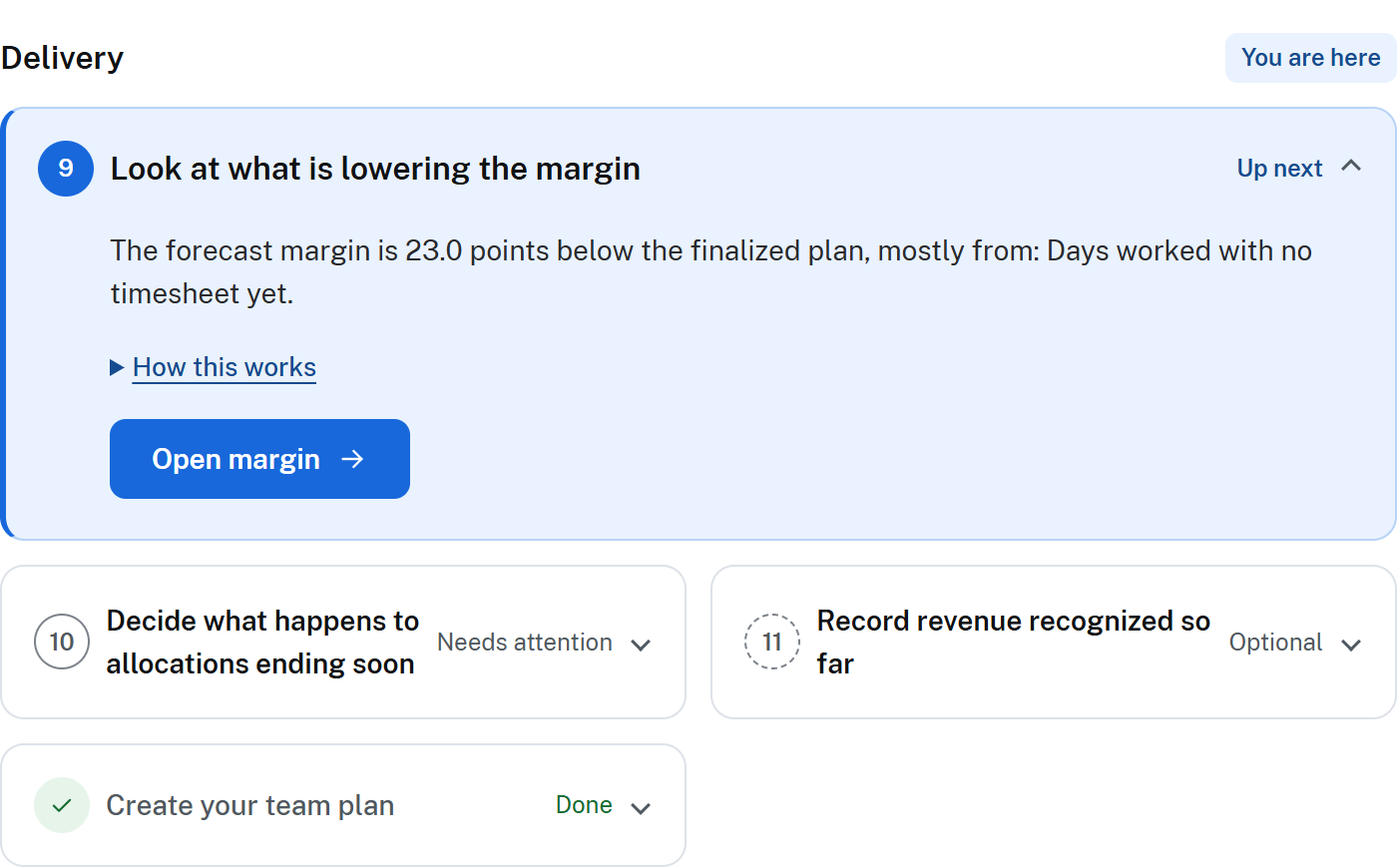
Enter the hours worked and watch the margin

The project manager types in the hours actually worked, usually at the weekly progress catch-up. The sooner that happens, the sooner an overrun shows — and the more you can still do about it.

This is not a timesheet system. Nobody clocks in. One person enters the hours for the project.
Managed Margin flagging that actual margin is 12% below plan, naming the person whose hours drove it

Every person over plan, and the margin that fell from 36.49% to 24.43% because of it.

Who enters the hours

The project manager, the project owner, or an Owner or Admin. Nothing is imported from a timesheet, HR, payroll or accounting system.

What updates

The margin earned so far, the margin left after shared costs, how much of the budget is spent, and which roles are over their hours.

Roles and permissions

Who sees what, across all four steps

Every step above runs through the same access model. Seeing a margin percentage and seeing the dollars behind it are different permissions — and logging hours is a separate permission again.

Owner and Admin

Set the cost rates every margin is worked out from, see every figure on every project, and can log hours on any of them.

Sales, Presales and Viewer

In a shared workspace, these roles see the margin percentage and whether a project is healthy — never a dollar figure, and never a pay rate.

Project owner, Finance and PM

See full financial detail for their own projects. Logging actual hours is narrower: the PM, the project owner, or an Owner/Admin can do it — Finance can see the dollars without being the one who enters the hours.

RoleSees margin %Sees dollar figuresSets cost ratesLogs actual hours
Owner / AdminYesYes, every projectYesYes
Project ownerYesYes, own projectsNoYes
PMYesYes, own projectsNoYes
FinanceYesYes, own projectsNoNo
Sales / Presales / ViewerYesNoNoNo

Try it on your next project

Free to use at the moment, with no card and no time limit.

Read the practical guide to project margin management for professional services.